Главная страница

Блог около Guide Diagnosing Laptop LCD Failures With a Multimeter

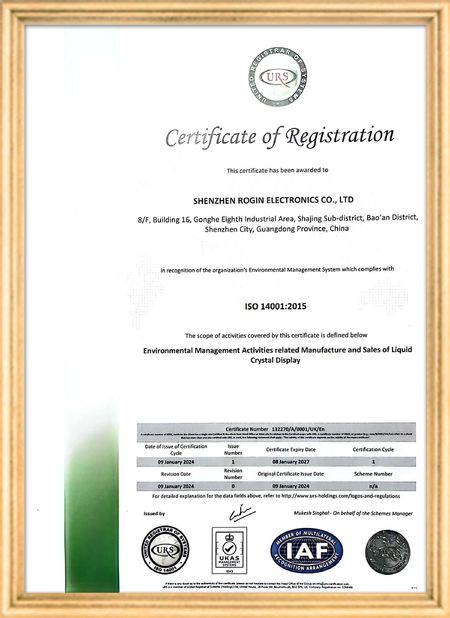
Сертификация
КНР Shenzhen Rogin Electronics Co., Ltd. Сертификаты
Просмотрения клиента
Эти дисплеи отлично работают в трамваях. Высокая яркость, антиотблески и стабильность даже при длительных вибрациях. Пассажиры любят чистый вид.

—— Каспер Соренсен

Точные цвета, быстрая реакция и нормальный запуск при низкой температуре.

—— Николь Беккер

Простая установка, широкий температурный диапазон и превосходная видимость в условиях яркого освещения. Эти дисплеи отвечают всем нашим требованиям к промышленному оборудованию.

—— Джованни

Эти ЖК-дисплеи высокой яркости идеально подходят для наших промышленных панелей управления. Они остаются кристально чистыми даже под прямыми солнечными лучами в цеху и работают круглосуточно без каких-либо проблем. Отличное промышленное качество.

—— Лукас Мюллер

Оставьте нам сообщение
компания Блог
Guide Diagnosing Laptop LCD Failures With a Multimeter
последние новости компании о Guide Diagnosing Laptop LCD Failures With a Multimeter

When your laptop screen suddenly goes dark, don't panic. A simple multimeter can help you quickly identify power supply issues. This guide simplifies the diagnostic process, enabling you to check your LCD screen's power supply and determine whether the problem lies with the screen itself or its supporting components.

Preparing Your Multimeter

Begin by setting your multimeter to measure DC voltage. Before testing, identify your screen's rated voltage—typically marked near the power connector or available in the device specifications. Modern laptop screens commonly operate between 3.3V to 19V, depending on the model.

Testing Procedure

With the laptop powered off, carefully connect the multimeter probes to the screen's power connector terminals:

  • Place the red probe on the positive (+) terminal
  • Place the black probe on the negative (-) terminal or ground

Power on the device and observe the multimeter reading. Compare this measured voltage with your screen's rated voltage.

Interpreting Results

If the reading shows significantly lower voltage than specified or no voltage at all, potential issues include:

  • Faulty power adapter
  • Damaged motherboard power circuits
  • Loose or damaged cable connections

Systematically check each component: try a different adapter, inspect motherboard connections, and reseat all cables. If voltage readings return to normal after any intervention, you've likely found your culprit.

When voltage measurements match specifications but the screen remains nonfunctional, the issue may involve the LCD panel itself, the backlight, or other screen components requiring further diagnosis.

Safety Considerations

Always disconnect power before handling internal components. When working with exposed connectors, avoid touching multiple contacts simultaneously to prevent short circuits. These basic diagnostic techniques provide valuable information for determining whether to repair or replace components.

Время Pub : 2026-05-18 00:00:00 >> blog list
Контактная информация
Shenzhen Rogin Electronics Co., Ltd.

Контактное лицо: Mr. Kelvin Zhu

Телефон: +86 15919061504

Оставьте вашу заявку (0 / 3000)